Review of onOne Perfect Photo Suite 7.5
So I purchased onOne's Perfect Photo Suite 7.5 this past week. As I qa prepping for vacation I haven't had much time to work with it but I thought I'd pull out a photo I'd given up on due to difficulty separating the background from my hair in PhotoShop. Perfect Photo Suite 7.5 contains the following products in one convenient package and can be used as a stand alone or as a plug in with Photoshop, Lightroom and more.
- Perfect Layers - allows you to work in layers without Photoshop
- Perfect Masks - allows you to easily replace backgrounds and claims it works even on hard to separate areas like my hair.
- Perfect Portrait - allows easy portrait retouching
- Perfect Effects - contains a large number of effect presets for both color and black ans white, including some textures and borders.
- Perfect B&W - allows for a variety of black and white conversions
- Perfect Resize - enables quality enlargements of photos.
- Focal Point - allows you to add selective effects similar to what you would get with a lensbaby or adjust depth of field after the photo was taken to get a shallow depth of field effect.
So far i have used the Perfect Resize, which is great and enabled me to list photos on select stock sites I wouldn't have otherwise been able to. I did a 30 day free trial and it is what led to this purchase so suffice to say, I was very happy with it.
In the below photo I used the Perfect Masks to remove the white background so you could see the vintage wallpaper layer; Perfect Portrait for some quick edits to my skin, eyes and lips and then Perfect Effects for finishing touches.
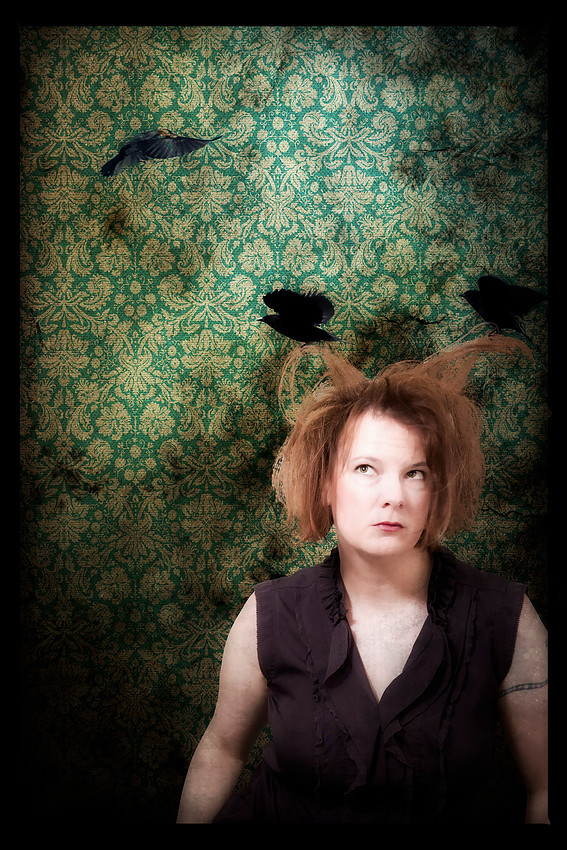
 In this image I started with a white background and just me. I had previously tried to remove the white background in Photoshop. Despite many tries I could not get the area around my hair to look good. The color selection removal was removing too much or too little and it just didn't look right. In Perfect Masks I was able to choose from a variety of brushes and select big or small areas to remove. The feature for areas like my hair worked fantastic and being able to select colors to keep (along the border) and colors to remove allowed for relaxed use of the brush, compared to the pixel by pixel type of masking I usually do in Photoshop. Perfect Masks was a success and I felt I could continue on with this piece.
The next thing I tried was Perfect Portraits. When you open it up it automatically finds your face. The eyes and lips are already selected and with the quick move of a dot here and there to perfect that selection, your ready to go. Next you use a simple brush to tell it what is and isn't skin and then use the sliders to the right to make adjustments. The adjustment sliders do everything from remove blemishes, refine skin tone, reduce shine, and more. There are also sliders to brighten and sharpen the eyes some and to add some saturation to the lips. Last the left column has a variety of presets you can use for super fast edits. You can save combos as a favorite to reuse in future edits which would make editing a portrait session super fast and easy.
Now that I'm happy with my background separation and skin, I added a few blackbirds. I used Photoshop as I was running out of time to play with new software and find this task easy in Photoshop. After that I opened Perfect Effects and that is where the fun really began. It has a long list of effect presets and you can scroll down the left column and click on them to see what they do. If you like you can play with intensity, select an area to not have the effect applied and so much more. You can add more than one effect to a photo. In this one I used a vignette, a glow and a border.
And to the left is my final result. You can visit onOne to see all of their products. They offer 30 day free trials so you can test drive before purchase and there are lots of video tutorials on how to use their products.
I hope this was useful. Don't forget to submit your self portrait to my Facebook page as part of the August Self Portrait Challenge. Details and rules can be seen here. i will begin featuring others self portraits the week of August 19.

